Manage Organisation and Suborganisations
Permissions
| Compliance Officer | Advanced User | Standard User | Data Entry Operator | Billing Officer | Auditor |
|---|---|---|---|---|---|
| edit | visibility | clear | clear | clear | visibility |
The Compliance Officer can edit organisation and scan settings for their organisation and suborganisations. You may like to add multiple suborganisations under your parent organisation for different departments or for specific scan criteria and scope for PEP & Sanction screening.
Organisation Details
The Details tab allows you to view or edit the following details for the organisation selected from the Organisation List:
Reseller accounts
If you are a Compliance Officer of a reseller account, you have the ability to set and edit the subscription dates.
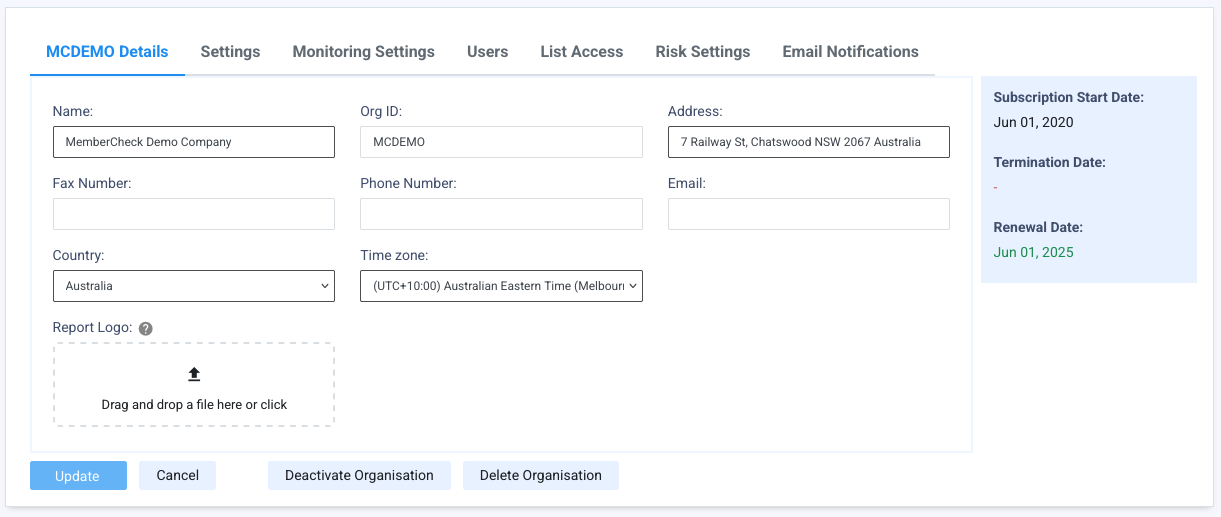
| Field | Required | Character Limit | Description |
|---|---|---|---|
| Name | Mandatory | 100 | Legal name of the organisation. If you change the name of your parent organisation, please notify support@membercheck.com so that we can update our records. |
| Org ID | Mandatory | 20 | Unique identifier for the selected organisation. Your parent organisation Org ID will be assigned to you during enrolment. For suborganisations, you can assign your own Org ID or allow the system to automatically assign an Org ID. The Org ID is key to identifying the organisation you are scanning for in batch files and API requests. |
| Address | Mandatory | 499 | Address of the organisation or head office. Free format |
| Fax Number | Optional | 50 | Free format. |
| Phone Number | Optional | 50 | Free format. |
| Conditional | 125 | Organisation email or email address to receive scan notifications if no Compliance Officer is assigned and no specific Notification Email Addresses are provided in Email Notifications tab. | |
| Country | Mandatory | - | Country where the organisation is based. This affects the Time zone used for the organisation. |
| Time zone | Mandatory | - | Time zone is automatically set based on the selected Country, however it can be changed to cater for different regions with different time zone settings. This time zone will be used for all dates and times displayed for the organisation, with the exception of the Activity Report, which is based on Australian Eastern Standard/Daylight Saving Time (UTC +10/11). Time zone is displayed against the Last Login date and time on the MemberCheck banner, for reference For users that are assigned to an organisation belonging to a group of organisations with different time zones, the time zone displayed against the Last Login date and time will be that of the group's parent organisation. |
| Report Logo | Optional | - | An organisation logo can be uploaded to be included for display in exported reports (PDF, Excel, Word). Supported formats: Maximum logo dimensions (pixels): Maximum file size: |
Scan Settings
The default User Defined option enables the users to select the scan criteria prior to scanning and offers the greatest flexibility.

Batch Setting
| Field | Required | Description |
|---|---|---|
| Batch Validation | Mandatory | A setting that determines if batch file validation is performed prior to scanning. Options are:
|
Individual Scan Settings
Setting options to User Defined enables the user or API client to specify their preference during screening.
| Field | Required | Description |
|---|---|---|
| Default Name Match Type | Mandatory | A setting that defines the default name match type across the organisation for all scans of individuals. The options are Exact Scan results show matches where the First and Last Name match exactly. Middle names are also taken into account but Middle Name matching does not eliminate watchlist entities with no middle name. Scan results include matches, where:
Exact (Including Middle Name)
Close
|
| Close Name Match Rate | Mandatory | Applicable for Close name matches only. Improves relevance of scan results by setting a Close Name Match Rate threshold. Options are:
Example: The name
|
| Whitelist Policy | Mandatory | A setting that ensures previous due diligence decisions, i.e, an individual is determined to not be a watchlist entity, are taken into account in future scans. Therefore, previous match results will not be returned as a match. Options are:
|
| Country of Residence Policy | Mandatory | A setting, for individual scans, which allows matches to be ignored if the individual's Country of Residence is different to that of the matching watchlist entity. This rule can be applied to selected category matches or to all matches,. Options are:
|
| Default Country of Residence | Mandatory | Used for nominating a Country of Residence for the individual's address where a country cannot be identified. To utilise the Country of Residence Policy, a country needs to be identified in the member's Address field. For member addresses, which are not blank but do not contain an identifiable country, if a Default Country of Residence has been nominated, it will be automatically assigned to the member as the Country of Residence, in both single and batch scans. For MemberCheck users outside Australia, selecting a Default Country of Residence removes the need to add the country to the address of a member where a country does not already exist in the member's records. For Australian MemberCheck users, selecting The default setting is announcementDefault Country of Residence should be set once and not changed as no record is kept of changes to this setting. person Only a Compliance Officer can select a Default Country of Residence, it cannot be user defined prior to scanning. |
| Apply Country of Residence to Blank Addresses | Mandatory | Used in conjunction with Country of Residence Policy and Default Country of Residence, this setting defines whether the Default Country of Residence is used where Member addresses are blank during PEP and Sanction scans. Including a Country of Residence during PEP and Sanction scans helps to eliminate and reduce false positives. This option provides a catchall if Member addresses do not contain any information. Options are:
|
| PEP Jurisdiction Policy | Mandatory | This setting determines whether to exclude or include PEPs and their RCAs based on their jurisdiction's presence in the specified exclusion or inclusion list. The default which is set by the scanning organisation's Compliance Officer is Options are:
info If no country is defined in PEP Jurisdiction Countries in the fields below, this is the same as selecting |
| PEP Jurisdiction Countries | Optional | Options are:
Your obligations under the appropriate AML/CTF or AMC/CFT legislation should determine which PEP Jurisdictions you choose to explicitly include or exclude. info To apply the PEP Jurisdiction policy to explicitly include or exclude the defined countries, the |
| Exclude Deceased Persons | Mandatory | Allows you to specify if deceased persons are to be excluded from the scan results. Options are:
|
| Web Search | Mandatory | Allows you to specify if a search on the Google search engine should be included during screening. Options are:
|
| Advanced Media Search | Mandatory | Allows you to specify if an advanced search for the latest news articles should be included during screening. Options are:
|
| FATF Jurisdiction Risk | Mandatory | Allows you to specify if a jurisdiction search which includes technical compliance and effectiveness ratings, based on FATF recommendations, should be included during screening. Options are:
|
| Original Script/Full Name Search | Mandatory | A setting, which when turned On, provides an additional Original Script Name or Full Name field in the scan parameters to allow single and batch scanning of a person's name in its original script (e.g. Arabic, Chinese, Cyrillic, Indonesian, Korean, Japanese, Thai and other non-Latin/Roman scripts).Options are:
|
| Matching Scope | Mandatory | Sets how widely each field narrows the results. A scope is set for each of Date of Birth, Gender, Nationality and ID Number. Options are, from the narrowest to the widest:
warning Under this scope, a watchlist entity that could be a true match is eliminated if its record does not hold a value for this field.
Entering a value is not required to run a scan. A field you leave blank narrows nothing. What counts as a match differs by field:
warning ID Number and the risk of a missed match. A watchlist profile that holds a different identifier from the one entered is returned only under This setting replaces the Ignore Blank Policy. Your existing settings were carried over, so your results do not change until you widen a scope. |
| DOB and YOB Tolerance (Years) | Mandatory | A setting which allows for date of birth variations in the results returned with a tolerance of [X] years on either side of the individual's date of birth. Enabling this variation will ignore the specific day and month of the birthdate and will match against the year only. Supports a maximum of 9 years of variation.Options are:
This is turned off by default. |
| Default Scan Results | Mandatory | Set preference to display Matches Found and/or No Matches Found in Scan Results screens. This can help users to pre-filter the results to focus on individuals that have matches or view all screened individuals in the system. |
| Limit Scan Results | Mandatory | Set limits on the maximum number of scan results returned for Exact and Close name match types.Defaults to |
Corporate Scan Settings
| Field | Required | Description |
|---|---|---|
| Default Name Match Type | Mandatory | A setting that defines the default name match type across the organisation for all scans of corporate entities. Options are:
|
| Close Name Match Rate | Mandatory | Applicable for Close name match type only. Adjust relevance of scan results by setting a Close Name Match Rate threshold ranging from 100% (almost exact match of name) to 1% (somewhat similar sounding name).Options are: Match rate - Define the closeness of name matching. Scan results will return matches with a match rate greater than or equal to the value entered. Accepted values are between
Example 1: The name
Example 2: The name
|
| Whitelist Policy | Mandatory | A setting that ensures previous due diligence decisions, i.e, a member is determined to not be a watchlist entity, are taken into account in future scans. Therefore, previous match results will not be returned as a match. Options are:
|
| Country of Operation Policy | Mandatory | A setting which allows matches to be ignored if the corporate entity's Country of Operation is different to that of the matching watchlist entity. Options are:
|
| Apply Default Country to Blank Address | Mandatory | Used in conjunction with Country of Operation Policy and Default Country of Operation, this setting defines whether the Default Country of Operation is used where the Corporate country locations are blank during screening. Including a Country of Operation helps to target and filter relevant results. This option provides a catchall if Corporate addresses do not contain any information. Options are:
|
| Web Search | Mandatory | Allows you to specify if a search on the Google search engine should be included during screening. Options are:
|
| Advanced Media Search | Mandatory | Allows you to specify if an advanced search for the latest news articles should be included during screening. Options are:
|
| FATF Jurisdiction Risk | Mandatory | Allows you to specify if a jurisdiction search which includes technical compliance and effectiveness ratings, based on FATF recommendations, should be included during screening. Options are:
|
| Stopwords | Optional | List of words or phrases to be ignored for Corporate scans. By default, this contains common company suffixes and their abbreviations. The system default is available if you choose to use this, or customise this to cater to your customers. On occasion, we may update the system default to improve the searchability for our clients. To use the latest system default, which will replace any customisation you have made, click on Reset to Default. Stopwords are comma-separated and support up to 4,000 characters, including non-Latin and original script text, so you can maintain an extensive list of exclusions. |
| Matching Scope | Mandatory | Sets how widely the Registration Number narrows the results. Options are, from the narrowest to the widest:
warning Under this scope, a watchlist entity that could be a true match is eliminated if its record does not hold an identifier.
The scope matches on any identifier held against the profile, for example BIC Number, SIC Number or VAT/Tax Number. warning Registration Number and the risk of a missed match. A watchlist profile that holds a different identifier from the one entered is returned only under Entering a registration number is not required to run a scan. A blank field narrows nothing. This setting replaces the Ignore Blank Registration Number policy. Your existing setting was carried over, so your results do not change until you widen the scope. |
| Default Scan Results | Mandatory | Set preference to display Matches Found and/or No Matches Found in Scan Results screens. This can help users to pre-filter the results to focus on corporate entities that have matches or view all screened corporates in the system. |
| Limit Scan Results | Mandatory | Set limits on the maximum number of scan results returned for Exact and Close name match types.Defaults to |
Customisation of company stopwords
When customising your company or entity stopwords, be careful not to include common words or suffixes which may also form part of an organisation name, as this may return more results for matches which are irrelevant.
Watchlists Setting
| Field | Required | Description |
|---|---|---|
| Select Watchlist Categories | Mandatory | A setting which when turned On, enables users to customise the scope of screening from the list of selected watchlist categories when performing a new scan.Options are:
|
Risk Assessment Setting
| Field | Required | Description |
|---|---|---|
| Enable Risk Assessment | Mandatory | A setting which controls the AML Risk Assessment check to be enforced and completed during a new scan, or optional for user selection. This applies to both Individual and Corporate screening. Options are:
infoThis option is editable if your organisation has subscribed to the AML Risk assessment service and the service is activated. To customise the questions of the AML Risk Assessment check, refer to Risk Assessment. |
IDV Scan Settings
| Field | Required | Description |
|---|---|---|
| Enable Global FaceMatch | Optional | Disable or enable the global FaceMatch screening (biometric facial matching against government-issued documents). Turning this off will automatically switchover to ID Check only (verification against official and commercial sources. |
| Enable ID Verification | Optional | Disable or enable the ID Check (document verification screening against government-issued and commercial sources). List of supported countries for ID Check. Turning this off will automatically switchover identity verification to FaceMatch. |
| IDV Countries | Mandatory | Select the countries your organisation would like to accept for ID Check. Options are:
|
| Default Country | Optional | Set a default country if you would like a pre-selected country to appear in the field Country of Verification in Single Scan. This provides a pre-selected value, but does not restrict the user from selecting a different country for verification. This may be useful if the majority of the verification sources are the same. |
| Preferred Verification Process | Mandatory | Select the ID Check document verification preference to verify against all documents provided or stop at the first successfully verified document. Options are:
|
Monitoring Settings
Define scan setting options for ongoing monitoring. These can be set to be the same as Settings or adjusted to cater for variations depending on your organisation's AML/CTF obligations.
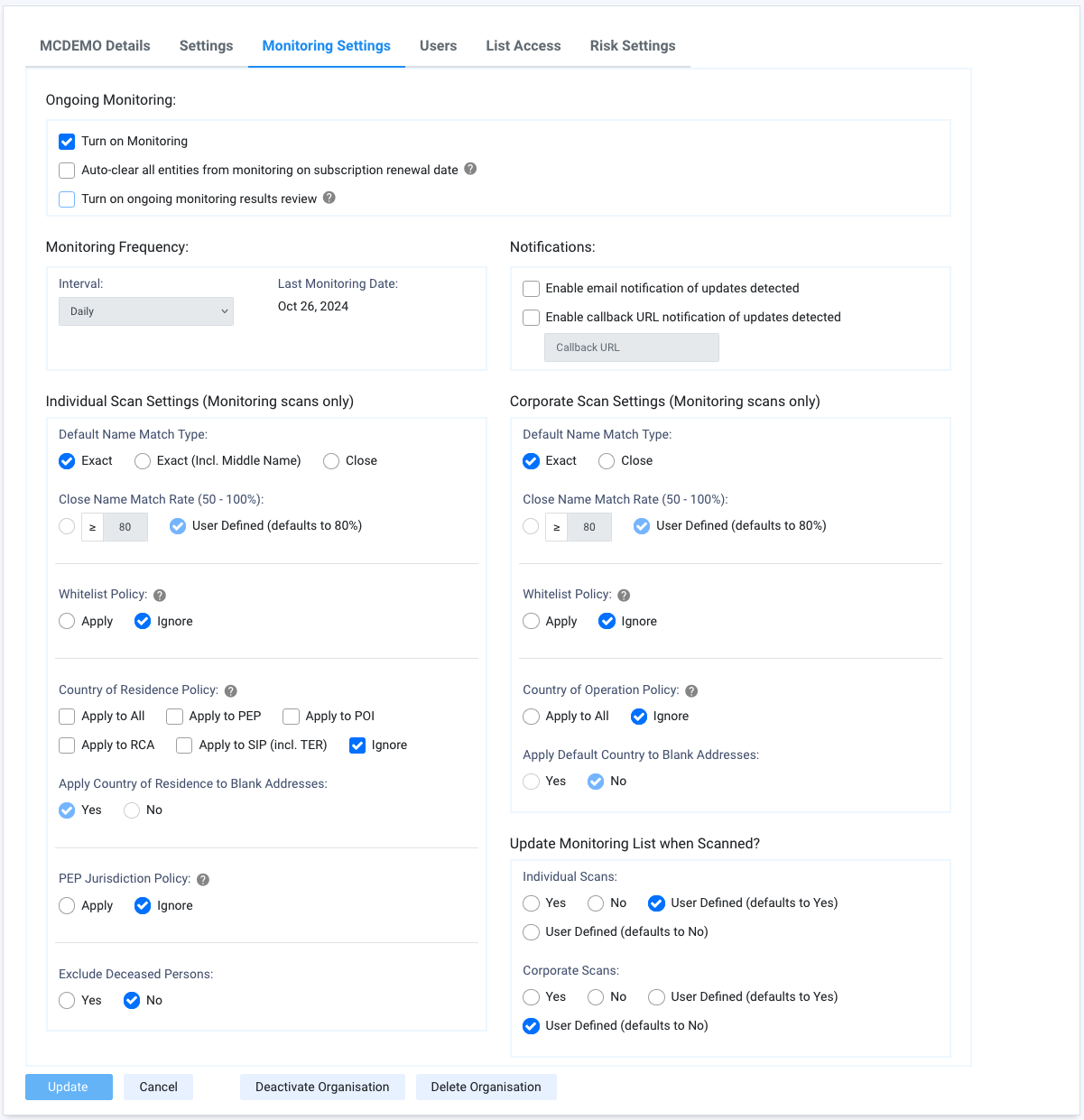
Some additional features to note:
| Field | Description |
|---|---|
| Turn on Monitoring | Check this option to enable ongoing monitoring for your organisation. This is not checked by default. |
| Auto-clear all entities from monitoring on subscription renewal date | On the first day of subscription renewal, all active entities in the Monitoring List are rescanned. Check this option to automatically clear all entities from the Monitoring List on the first day of subscription renewal. This is not checked or enabled by default. |
| Turn on ongoing monitoring results review | Check this option to enable tracking of ongoing monitoring review within Monitoring Results screens. This is not checked or enabled by default. |
| Monitoring Frequency | Displays the preset interval for ongoing monitoring for your organisation account and the date the process was last run. These values are read-only and can be: Daily, Weekly, Fortnightly, Monthly, Quarterly and Semi Annually.To change the interval to reduce the frequency of ongoing monitoring, please contact your Account Manager or MemberCheck Support. |
| Enable email notifications of monitoring updates | Check this option to receive email notifications if changes are detected in the watchlist which may affect monitored individuals and or companies. Emails will be sent to the Compliance Officer or Organisation Email. This is not checked or enabled by default. |
| Last Monitoring Date | Displays the date the ongoing monitoring was last run for the organisation or suborganisation account. |
| Enable callback URL notification of updates detected | Check this option to receive API notifications if changes are detected in the watchlist which may affect monitored individuals and or companies. The specified callback URL must be available via GET method without authentication. For detailed usage of the callback URL, refer to FAQ This is not checked or enabled by default. |
| Update Monitoring List for New Individual Scan | Preference for adding new individual scans (single, batch and API) to the Monitoring List. Options are:
|
| Update Monitoring List for New Corporate Scan | Preference for adding corporate scans (single, batch and API) to the Monitoring List. Options are:
|
| Matching Scope | Sets how widely each field narrows the monitoring results. Monitoring carries a scope of its own, apart from the scan setting, so you can monitor more widely than you screen, or the reverse. Options are, from the narrowest to the widest:
A wider scope returns more monitoring updates to review. A narrower scope returns fewer. The scan setting has a fourth option, |
Users
The Users tab allows you to view or edit the following details, for the organisation selected from the Organisation List.
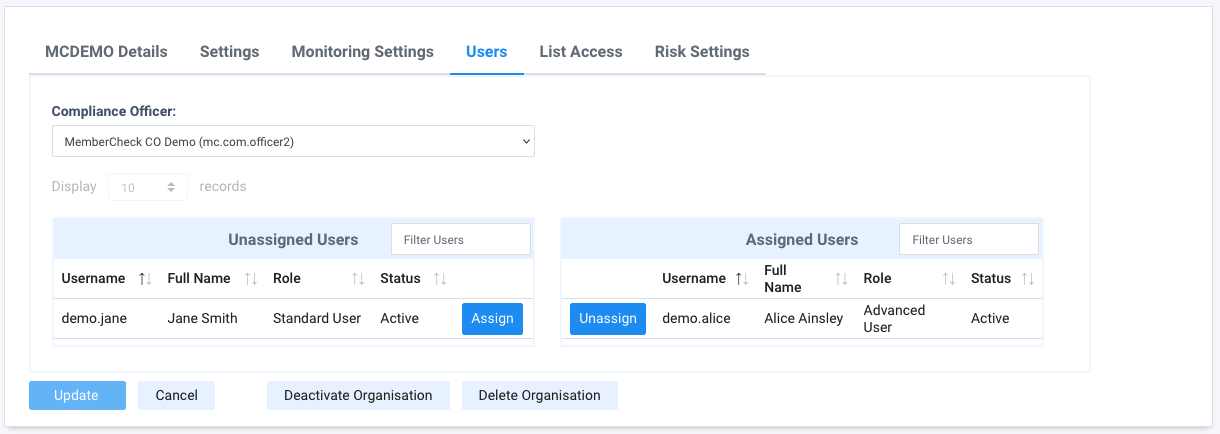
| Field | Description |
|---|---|
| Compliance Officer | Name of the assigned Compliance Officer for the selected Organisation. Compliance Officers in suborganisations are also available for selection in the list. |
| Unassigned Users | List of users associated with the primary organisation which are not assigned to the selected organisation or suborganisation. |
| Assigned Users | List of users assigned to the selected organisation or suborganisation. |
List Access
The List Access tab enables you to view and configure the scope of PEP and Sanctions screening for the chosen organisation or suborganisation.
You can tailor the screening scope at both the category and subcategory levels, including specific country sanctions lists or major international sanctions lists, and specific sanctions lists by country. These settings can be independently configured for different suborganisations.
Examples of the standard setup for organisations based on the selected data source:

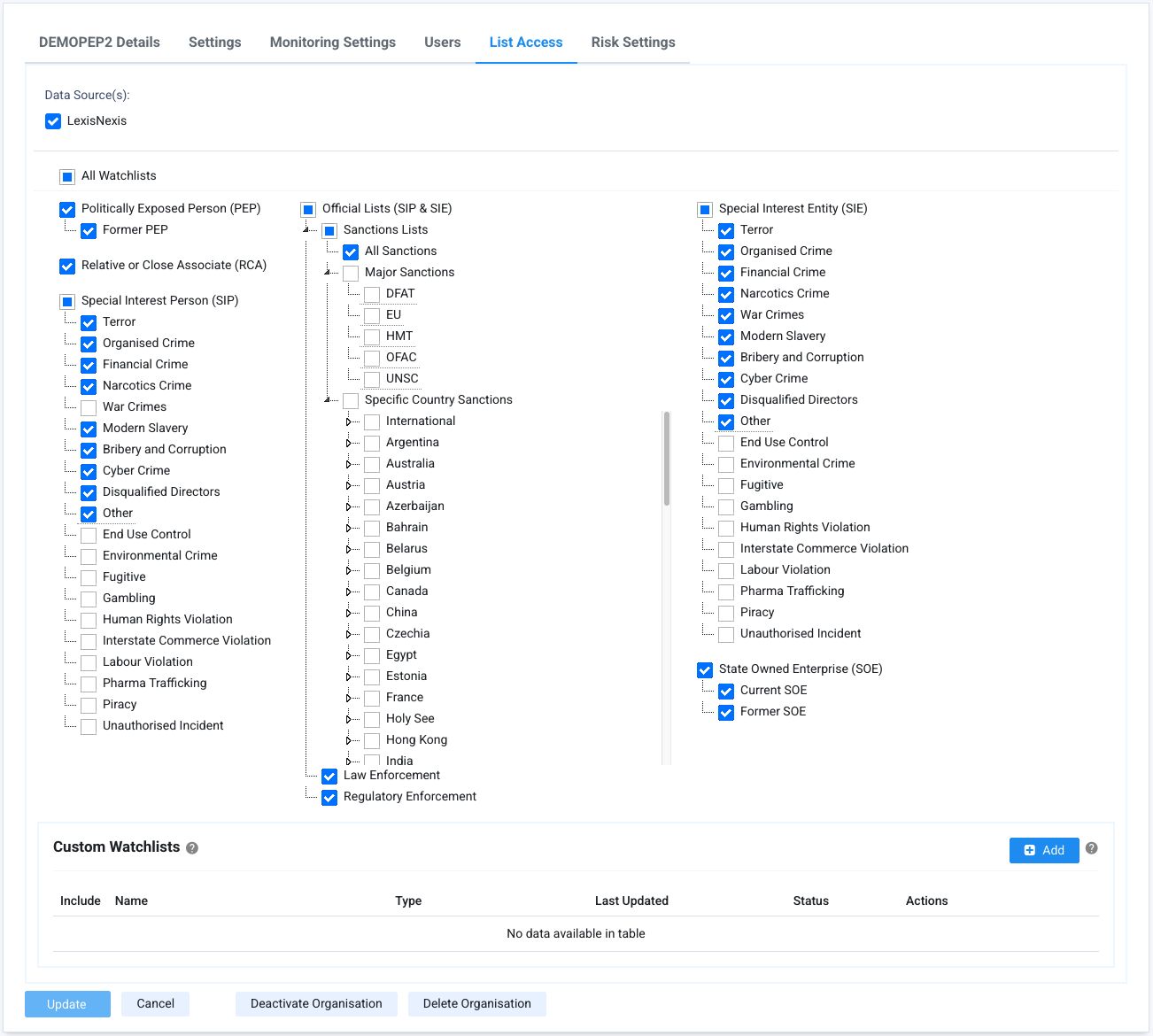
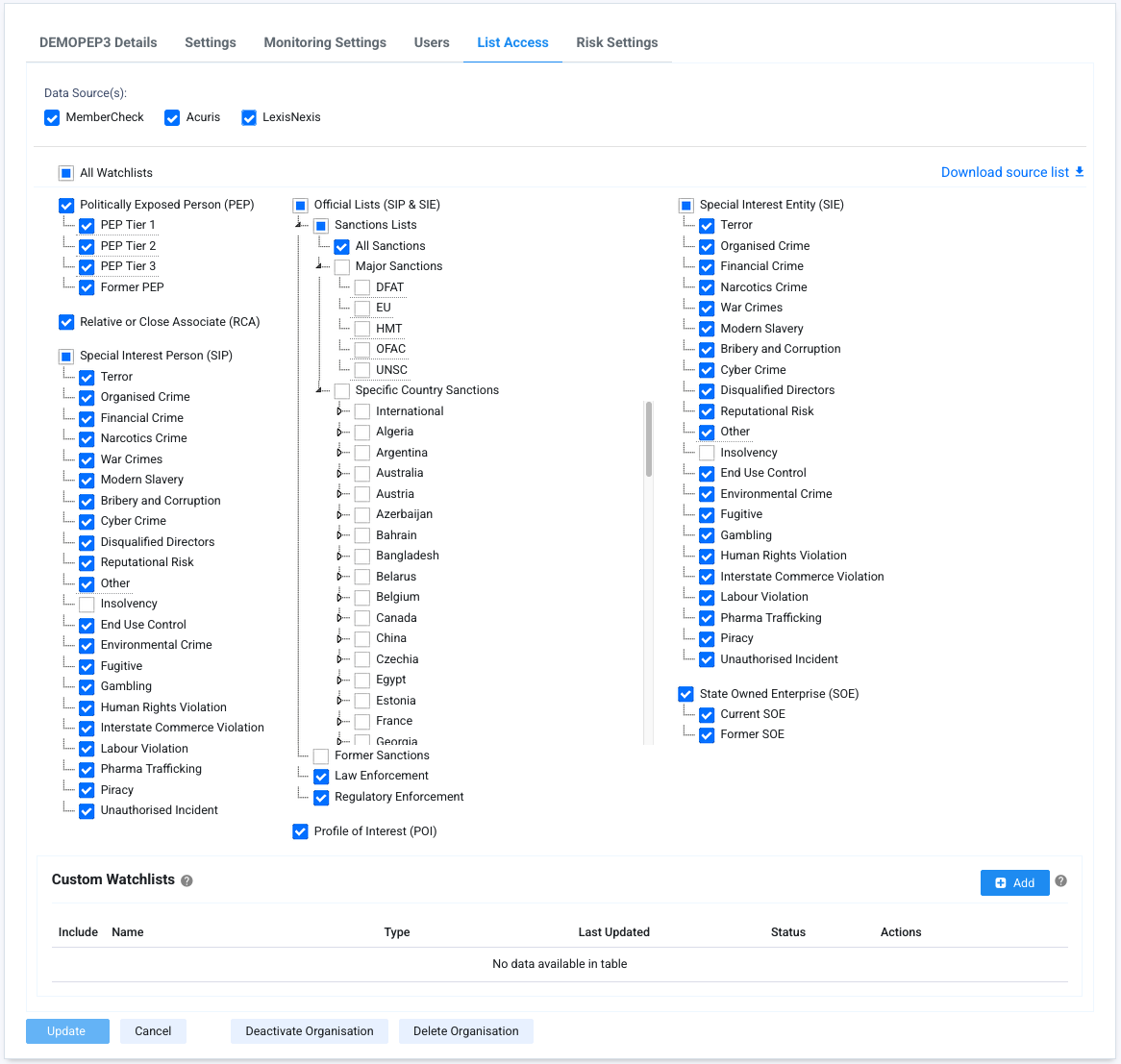
For organisations that have access to multi-data sources, there is the option for the Compliance Officer to enable the selection of the data sources during screening. By default, this is switched off.
Refer to List Categories for a full list of the definitions of all the main categories and subcategories available in the system. Your subscription may provide access to some and not all of these categories and subcategories.
A detailed list of sources utilised in the system for Sanctions, Regulatory Enforcement and Law Enforcement are available for your download and reference via Download source list on this screen.
Screening scope for Aircraft and Vessels
You can refine the scope of screening by including or excluding the Aircraft and Vessels profile types from the Sanctions and Adverse Media search. For organisations that do not screen aircraft or vessels, excluding these profile types reduces the number of irrelevant results to review. Both are included by default.
Custom Watchlists
You can include any specific watchlists or blacklists for your organisation to extend the PEP and Sanction screening.
For details on adding your own lists, refer to Manage Custom Watchlists
Risk Settings
The Risk Settings tab enables you to standardise risk levels for PEP and Sanction categories and subcategories across your organisation. Risk levels can also be applied to each list within your Custom Watchlist.
Set High, Medium or Low risk levels for any combination of categories and subcategories. These pre-defined levels are then displayed as recommended risk scores during due diligence workflows, but are not enforced.
Category risk levels apply to any unclassified subcategories under them. However, an explicitly set subcategory level takes precedence over its parent category level.
The overall risk score shown reflects the highest associated category/subcategory level for that profile.

An example of how this would be viewed within the scan result due diligence workflow:

Risk Assessment
The Risk Assessment tab enables you to customise the AML Risk Assessment questionnaire that users answer when they perform a Risk Assessment check. The tab is available if your organisation has subscribed to the AML Risk assessment service. The Compliance Officer can edit the questionnaire.
The Individual and Corporate questionnaires are on separate sub-tabs and are customised separately. The Corporate questionnaire is available to users with access to Corporate scans.
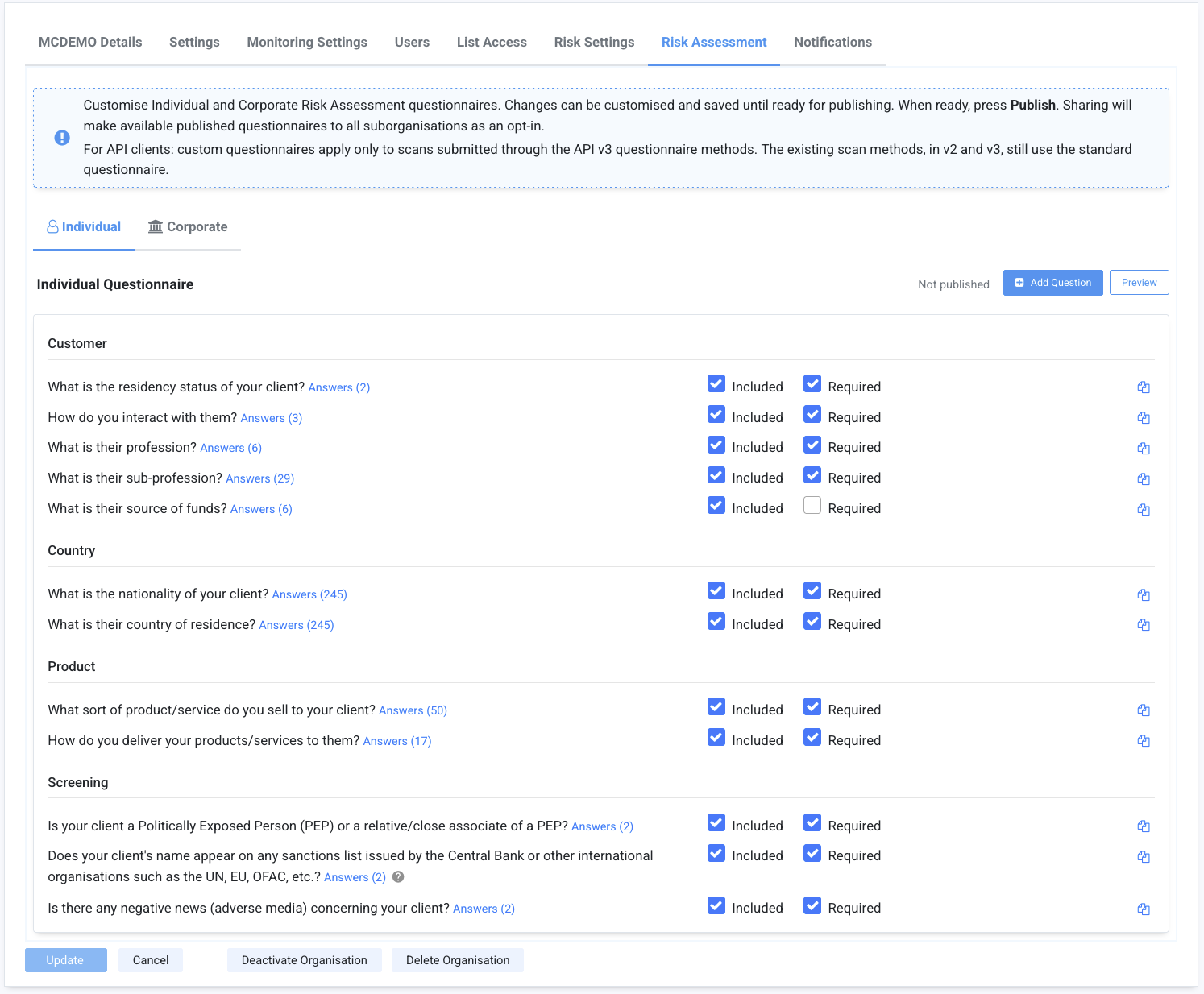
Until a questionnaire is published, new scans use the standard questionnaire. The header of each questionnaire shows its status:
| Status | Description |
|---|---|
| Live version | The version number and date of the published questionnaire that new scans use. |
| Not published | No version of the questionnaire is published yet. New scans use the standard questionnaire. |
| Unpublished changes | The saved draft holds changes that are not published yet. |
| Shared with sub-organisations | The published questionnaire is offered to the suborganisations as a template. |
Questions
The questions are listed by category. A question that your organisation added shows the Custom label, and the answers of each question can be expanded below it.
| Option | Description |
|---|---|
| Included | Shows the question on the scan form. Clear this option to exclude a question that your organisation does not use. |
| Required | The user must answer the question to complete the Risk Assessment check. This option is available for an included question. At least one included question of each questionnaire must be required. |
| Edit | Changes a custom question. Standard questions cannot be edited. |
| Clone | Creates a custom question from a copy of the question, its category and its answers. The clone can then be edited. Available for a question whose answers are radio buttons or a drop-down list. |
| Delete | Removes a custom question. |
Changing a standard question
Standard questions cannot be edited. To change any part of a standard question, including its answers and their risk scores, clone the question and edit the clone. Two questions cannot have the same text, so change the text of the clone or exclude the original question.
In the current release, not all standard questions can be cloned. Clone is not available for standard questions whose answers are a multiple selection or a free text entry.
Sanctions outcome
In the answer list of a question, a Sanctions answer is marked (Sanctions). A scan that selects a Sanctions answer gives the Sanctions outcome, whatever the score. If you exclude a question with a Sanctions answer, it cannot give that outcome. To keep the outcome with a question of your own, mark its answer as Sanctions.
Adding or editing a question
Click Add Question to add a custom question, or click Edit or Clone on an existing question. Complete the following fields, then click Apply:
| Field | Character Limit | Description |
|---|---|---|
| Question | 500 | The question as users see it on the scan form. Two questions cannot have the same text. |
| Category | 100 | Select a category of the questionnaire, or type a new category and press Enter. The questions are grouped by category. |
| Type | How the answers are shown on the scan form: Radio Buttons or Drop-down List. | |
| Answers | 200 | A question needs at least two answers, and the answers of a question must be different. Click Add Answer to add an answer. |
| Risk Score | Each answer needs a risk score: N (No Risk), L (Low), M (Medium) or H (High). | |
| Sanctions | Mark an answer that gives the Sanctions outcome when a scan selects it, whatever the risk score of the answer. |
The changes are kept on the page until you click Update to save the organisation. The saved changes form a draft, which no scan uses until it is published.
Publishing the questionnaire
| Option | Description |
|---|---|
| Preview | Shows the questionnaire as users see it during screening. |
| Publish | Makes the saved draft the live version. New scans use it from then on. |
| Discard | Deletes the unpublished changes of the draft. The live questionnaire is unchanged. |
Publish and Discard are shown when the questionnaire has unpublished changes. Publish, Discard, Share, Stop Sharing and Adopt become available once all changes on the organisation page are saved.
An existing Risk Assessment check keeps the questionnaire version it was made with, including when the assessment is updated later.
In the Corporate questionnaire, the Other legal status question must be included when the Legal status question is included.
Sharing with suborganisations
A parent organisation can offer its published questionnaire to its suborganisations as a template.
| Option | Description |
|---|---|
| Share | Offers the live questionnaire to the suborganisations. Available once the questionnaire is published. |
| Stop Sharing | Withdraws the template. Suborganisations that adopted it keep their copies. |
In a suborganisation, Available Templates lists the templates that the organisations above it share. Each template shows the organisation, the version and its date, and the number of questions. A template that the suborganisation has adopted shows the Adopted label.
- Preview shows the questionnaire of the template.
- Adopt adds the template to the draft questionnaire. The template replaces each question that the draft holds already, and keeps your other questions. Publish the draft to use it in new scans.
Custom questionnaires and the API
For API clients, custom questionnaires apply only to scans submitted through the API v3 questionnaire methods. The existing scan methods, in API v2 and v3, still use the standard questionnaire. Refer to the API Change Log.
Notifications
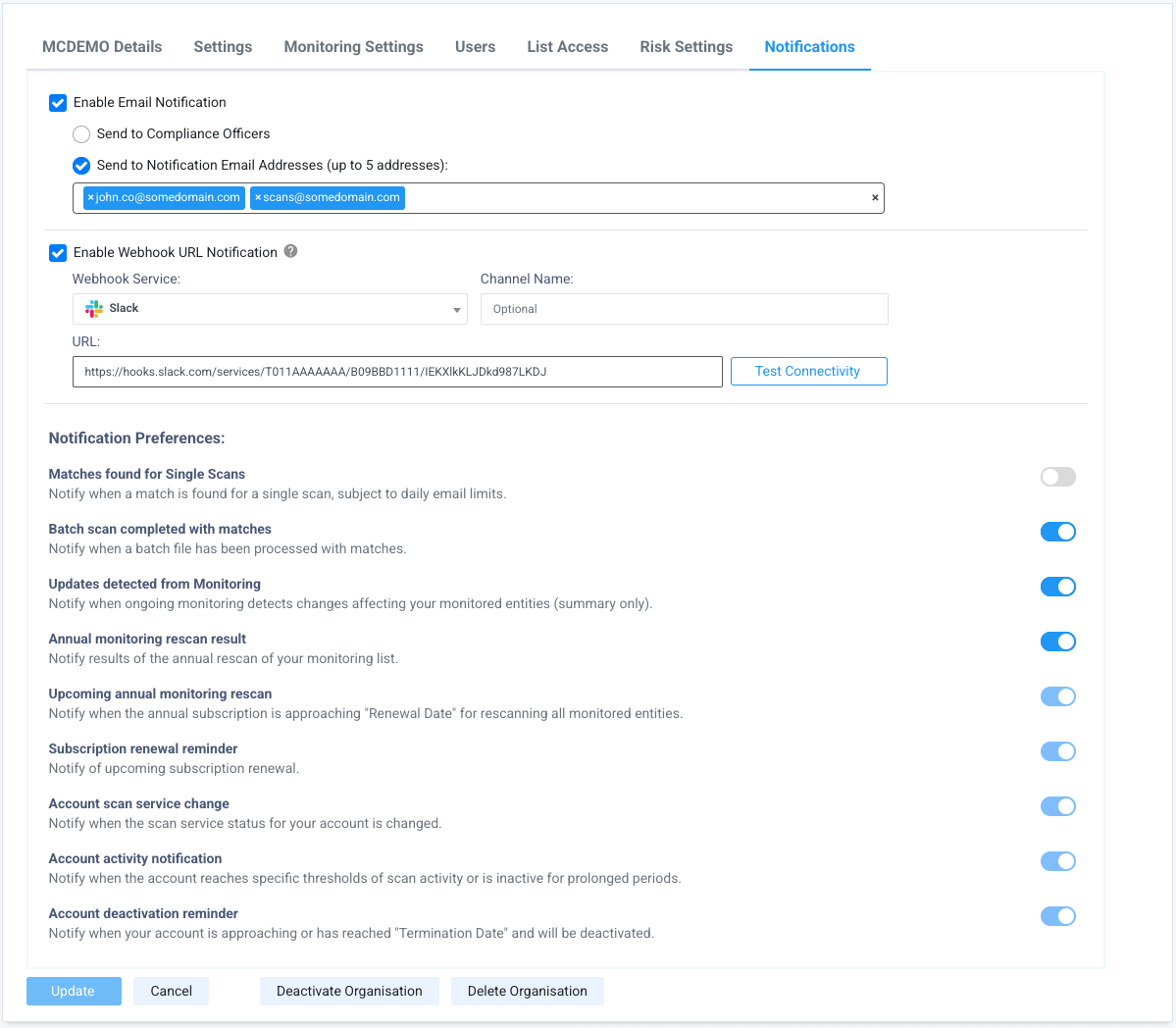
The Notifications tab (previously Email Notifications) enables you to configure how your Organisation receives notifications from the MemberCheck system. Tailoring these notifications ensures that the relevant personnel are informed about specific events according to your Organisation's needs.
Notifications can be via email, webhook or both.
Supported webhook services
Webhook support is available for Slack and Mattermost. If you have a specific webhook support requirement, please reach out to our Support team.
| Field | Description |
|---|---|
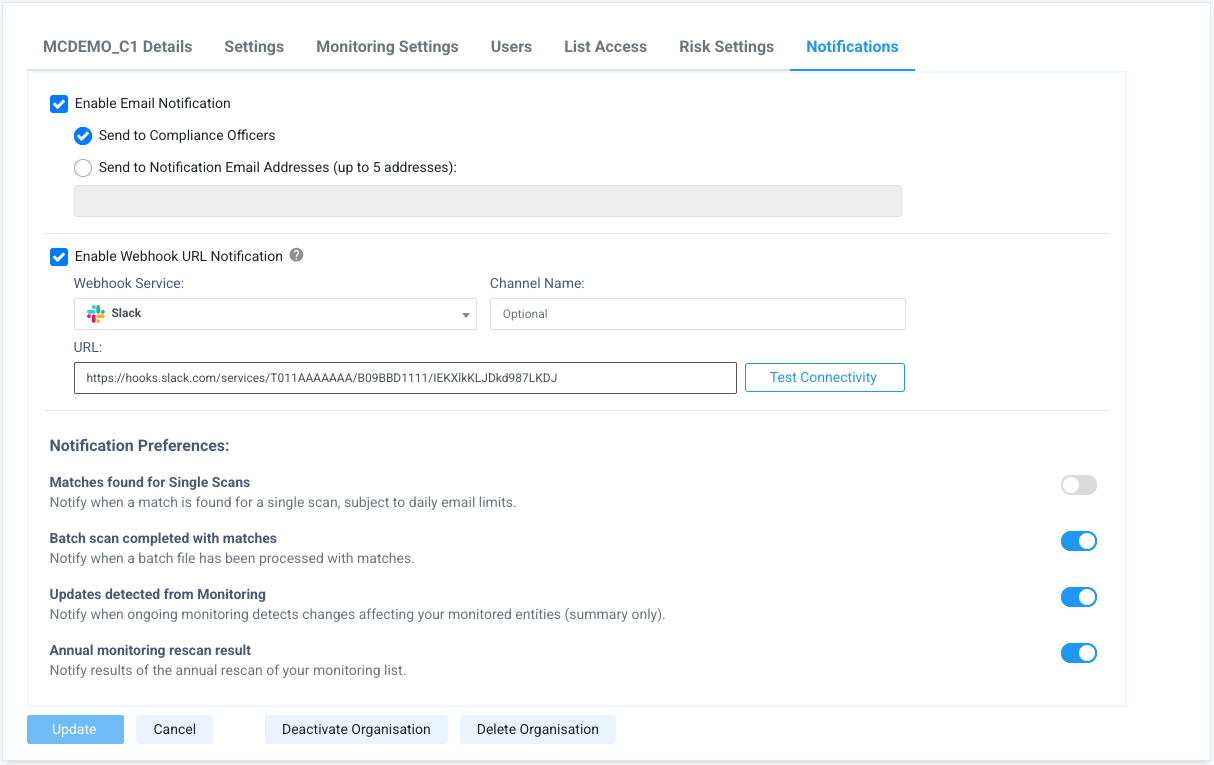
| Send Notification Emails to | Opt to send system email notifications to the assigned Compliance Officers, or specify the email addresses designated to receive the system notifications. You can add up to five distinct email addresses. This address field is separate from the primary Organisation Email address. Emails will be sent to the designated Compliance Officer(s). If specific Notification Email Addresses are provided, they will be used. If no Compliance Officer is assigned and no Notification Email Address(es) have been specified, notifications will be sent to the Organisation Email address as a backup. |
| Webhook Notifications | Opt to send system notifications via webhooks. Once you have set up an incoming webhook in your preferred platform or service, select the Webhook Service and copy your webhook URL into the URL field. You can optionally enter the Channel Name for ease of reference. Click Test Connectivity to send a test message to the webhook. |
| Notification Preferences | List of events that trigger emails and notifications from the system. Some events are not able to be switched off as these are important information affecting the Organisation's subscription, and have been listed here for reference. Organisations subscribed to ID Verification can enable the IDV request completed preference to be notified by email and/or webhook when an identity verification request is completed. This option appears only for organisations with ID Verification enabled, and is switched off by default. For privacy, notifications reference the Scan ID and IDV Reference rather than any personal information. |
Daily limit for Single Scan emails
Please note that a daily email quota applies per Organisation for Single Scans to ensure that you receive important notifications without potential interruption from email providers or being overwhelmed by emails.
The daily quota is 100 emails, but may be adjusted based on the load and usage.
System Email Information
Please be aware that users will receive emails triggered automatically by the system for important events such as subscription renewal reminders, monitoring rescan reminders, password resets, and other critical system communications necessary for service operation and account management.
Notification settings for a root parent organisation:
Notification settings for a suborganisation organisation:
Deactivate Organisation
For organisations that are no longer used but require retention of historical scan results and reports, you may deactivate the suborganisation or organisation. Deactivated organisations remain accessible for historical information but will not allow new scans or monitoring.
Users must be assigned to at least 1 active organisation
Please note that all users must have at least 1 active organisation assigned to their account to access MemberCheck.
Delete Organisation
For unused organisations and suborganisations without historical scans, you can deactivate or delete them.
To delete organisations with historical data, run Data Management to erase it first. Reassign or unassign all users associated with the organisation or suborganisation before deleting the account. For security, only organisations with no users or historical data can be deleted.
Deleted accounts cannot be restored.
Users must be assigned to at least 1 active organisation
Please note that all users must have at least 1 active organisation assigned to their account to access MemberCheck.
Quick How-To Guides
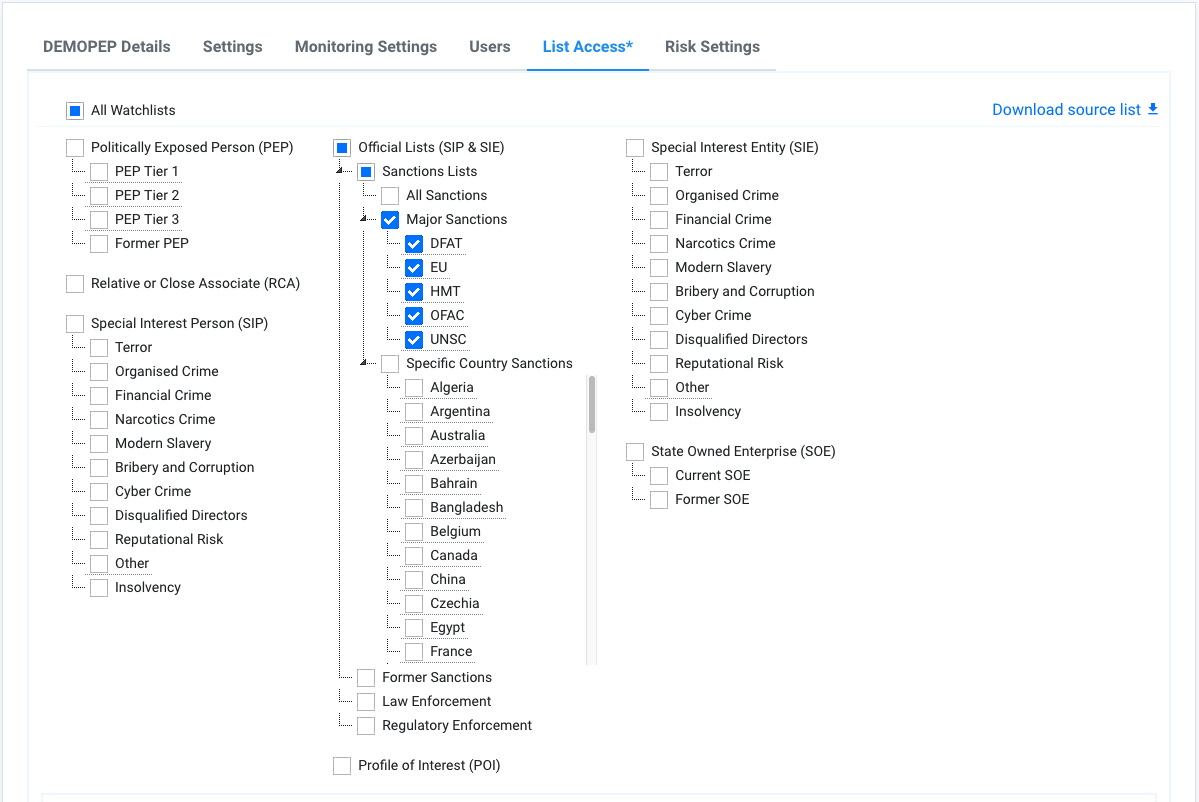
Screen against major sanctions lists only
Example of List Access setup to screen against the major sanctions only.
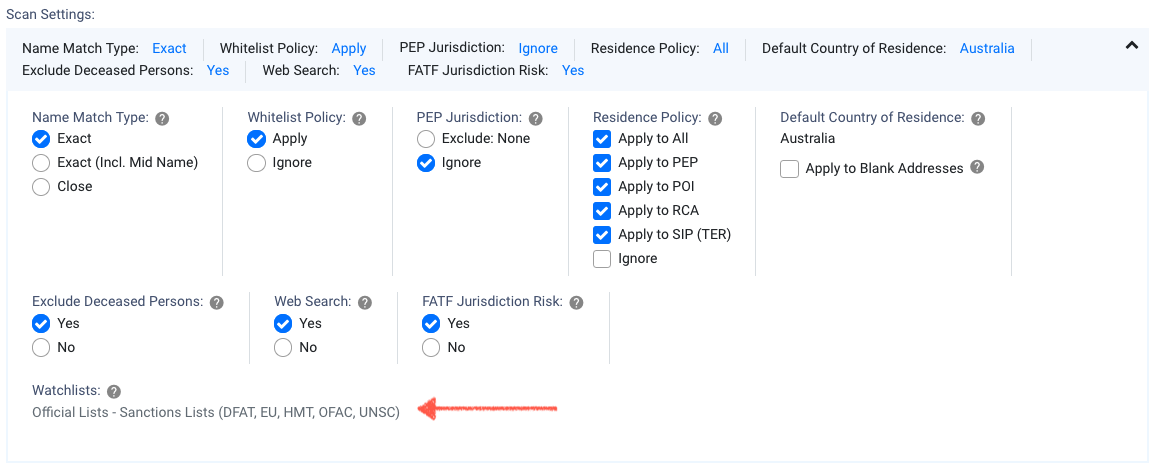
The selected sanctions will be displayed during screening:
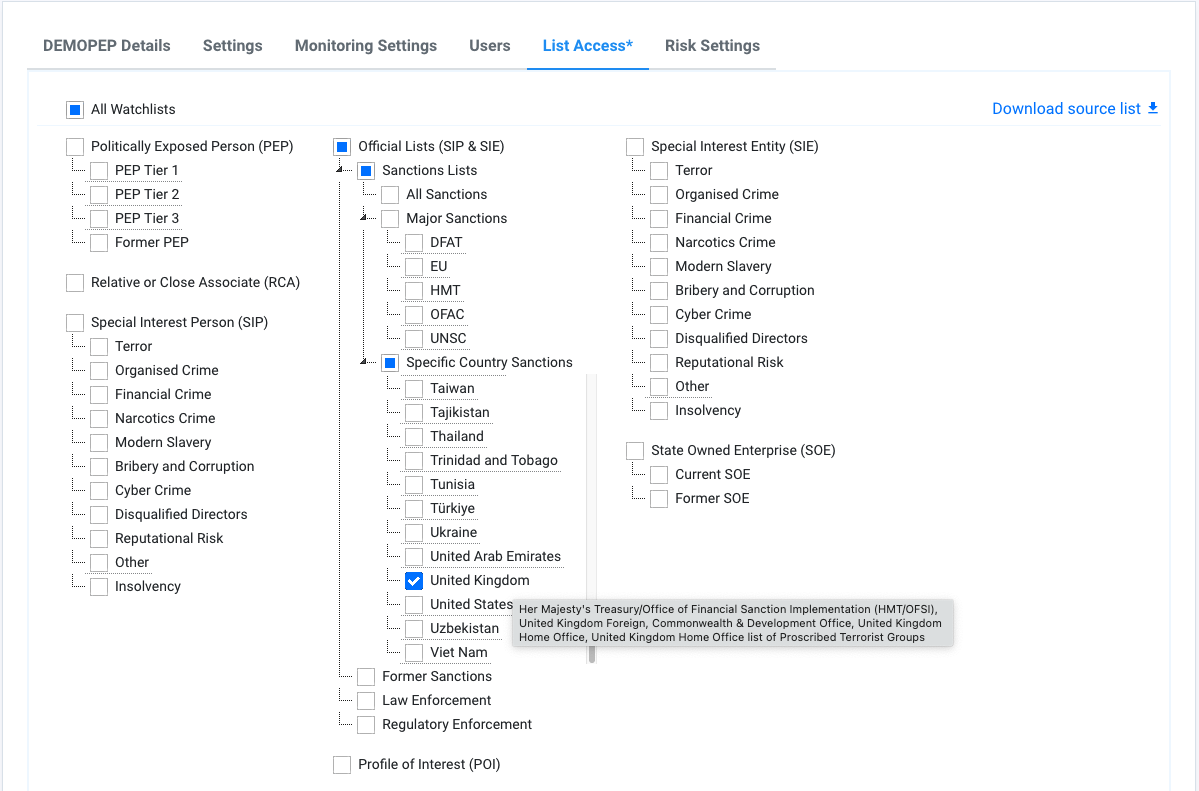
Screen against the United Kingdom sanctions lists only
Example of List Access setup to screen against the United Kingdom sanctions only. You can view the list of sanctions on mouse hover over the country jurisdiction.
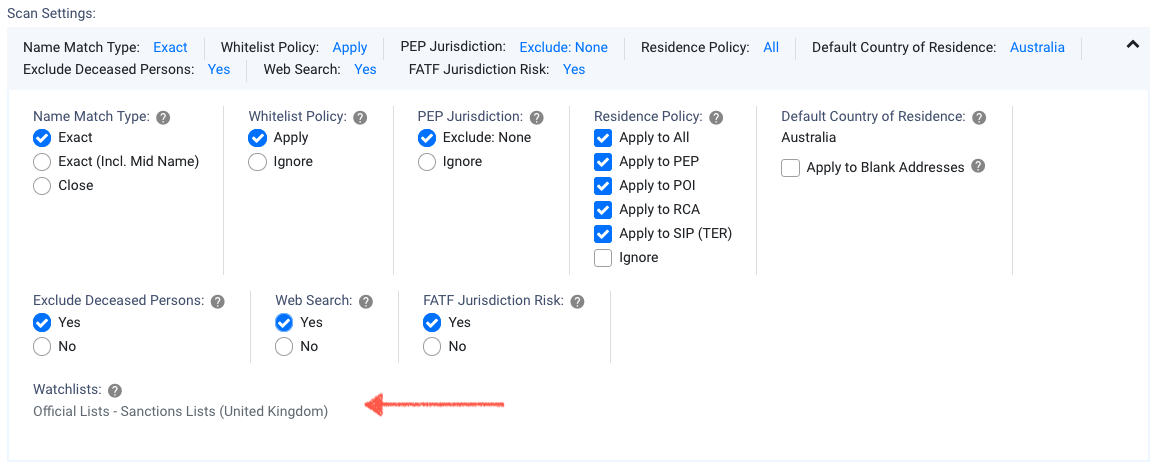
The selected sanctions will be displayed during screening:
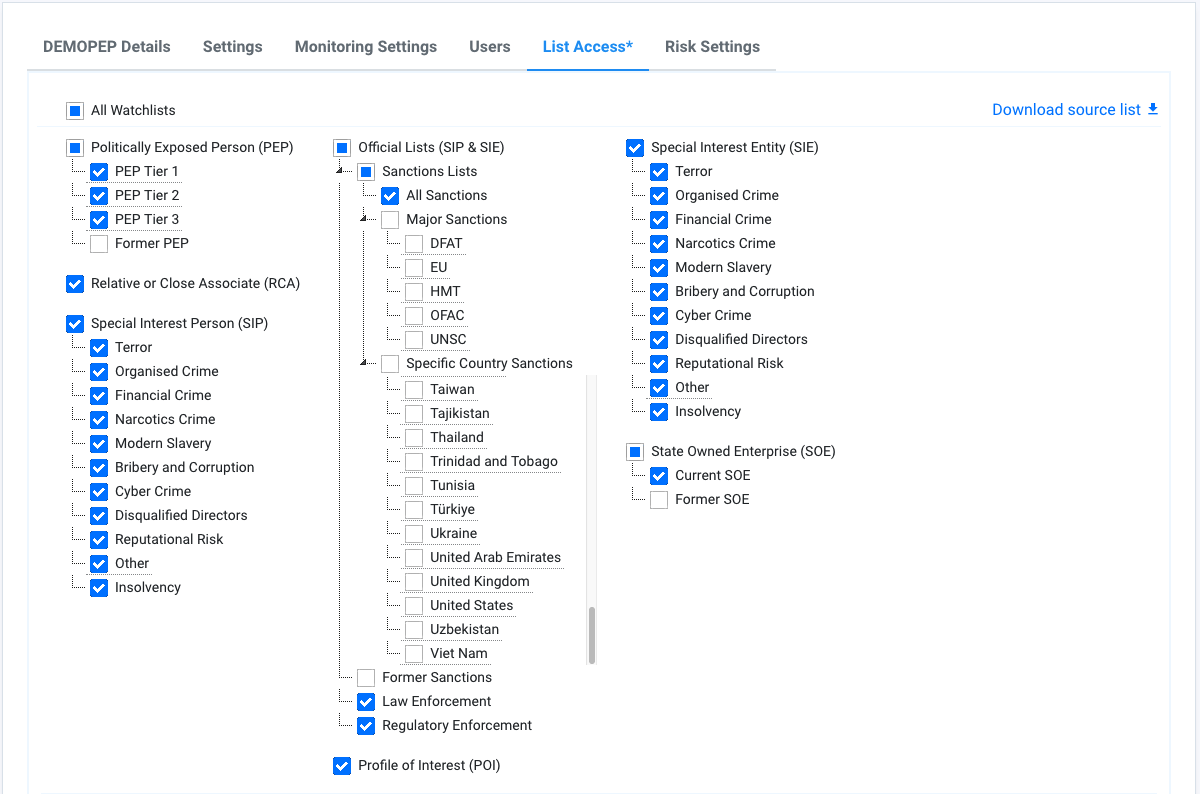
Screen against all watchlists
Example of List Access setup to screen against all watchlists.
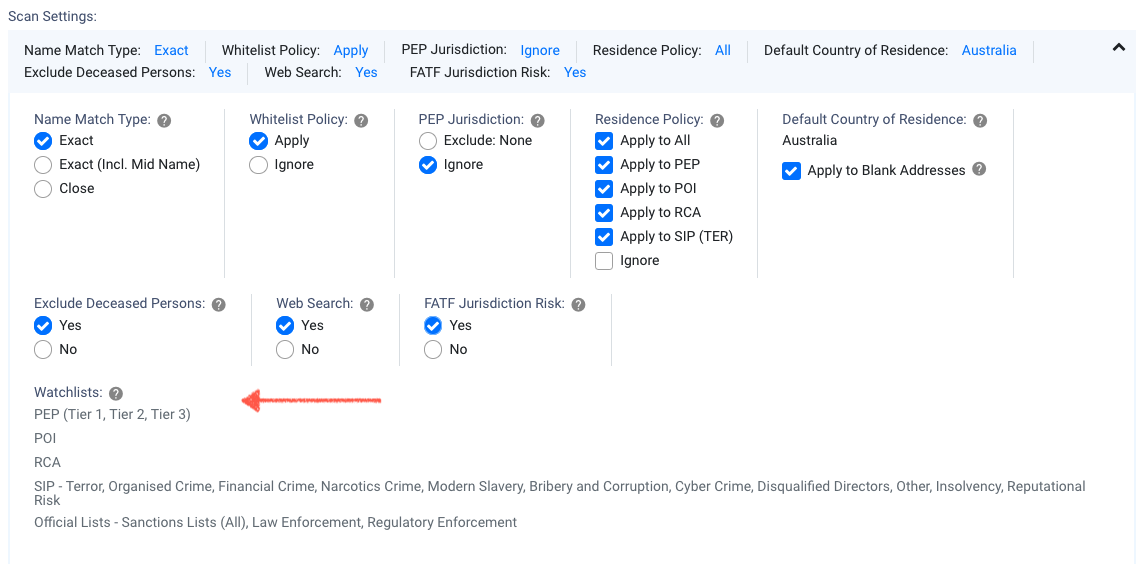
The selected watchlists will be displayed during screening:
Customising the Individual Risk Assessment questionnaire
Example of adding a new question and publishing the changes. Only published questionnaires are available for screening.
Example of changing the answer and risk score of an existing standard question through cloning, and publishing the changes. The questionnaire checks for duplicate question text.