Monitoring Results
Permissions
| Compliance Officer | Advanced User | Standard User | Data Entry Operator | Billing Officer | Auditor |
|---|---|---|---|---|---|
| edit | edit | visibility | clear | visibility | clear |
Ongoing Monitoring
Ongoing monitoring is integrated into the existing individual and corporate scan processes for a convenient way to access and manage monitoring of individuals and corporate entities, review outcome of monitoring scans and perform risk assessment for due diligence.
Monitoring Results are separated for Individuals and Corporates and can be accessed via Scan Results and Monitoring Results.
Detected changes in profiles which match monitored individuals or corporate entities will indicate the type of change (new matched profile, updated profile details of matches, or removed matches). These notifications are independent of any due diligence decisions performed unless the whitelist policy setting has been applied for the monitoring setting.
Notifications of detected changes can be configured to be emailed or notified via API. These monitoring settings are described in greater detail at Manage Organisations
Viewing Changes for Individuals and Corporates
Monitoring Scan Results for specific entities
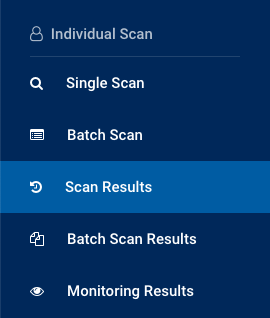
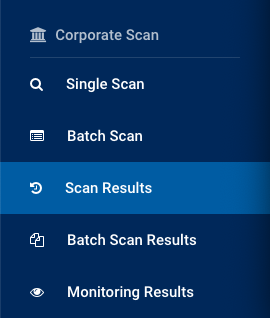
To view results of the automated monitoring scans for individuals, use Individual Scan > Scan Results or for companies, use Corporate Scan > Scan Results. You can filter and view the monitoring changes from a high level or filter to view changes for a specific individual.
Monitoring Scan Activities
There are two types of ongoing monitoring scan activities performed by the system automatically:
- Monitoring Scans - detects changes in monitored entities against the frequently updated watchlists on a regular basis and displays the differences in the watchlist profile from when the ongoing process schedule is last run.
- Monitoring Rescans - runs a scan of the monitored entities against the entire watchlist database and returns matches found. This process does not detect and highlight changes in the profiles returned. This process runs on the anniversary of the subscription renewal date for all active entities in the Monitoring List.
Monitoring Status of Matches
You can filter the monitoring statuses to assist with your prioritisation and escalation of due diligence and risk assessment.
| Status | Icon | Description |
|---|---|---|
| New Matches | fiber_manual_record | Automatic monitoring scans where a new match was found for the individual or company ("entity"). This may be due to new profiles being added to the watchlists, or updated watchlist profile information which now matches with the monitored entity. |
| Updated Matches | fiber_manual_record | Automatic monitoring scans where the profile of an existing match for the entity has been updated, or updated profile in the watchlist now matches the monitored entity. |
| Removed Matches | fiber_manual_record | Automatic monitoring scans where an existing match no longer applies to the entity due to removal of the profile from the watchlists. |
| No Changes | Automatic monitoring scans where no changes were found for the monitored entity. |
Monitoring Results
For an overview of the monitoring scan activities, which can be run Daily, Weekly, Fortnightly, Quarterly or Semi Annually, use Individual Scan > Monitoring Results or Corporate Scan > Monitoring Results for individuals and companies respectively. This provides an overview of the number of entities being monitored and the results. You can drill down to view detailed changes for a monitored individual or corporate similar to Scan Results.
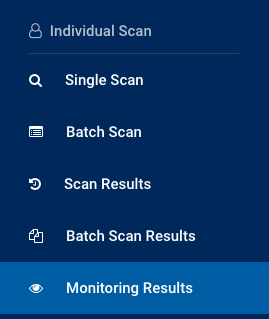
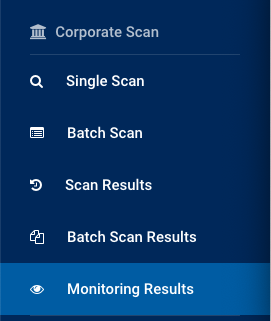
By default, only monitoring scans which contain changes in matched results are displayed in the list (Monitoring with updates). To view a full list of all monitoring activities, select the option All monitoring scans.
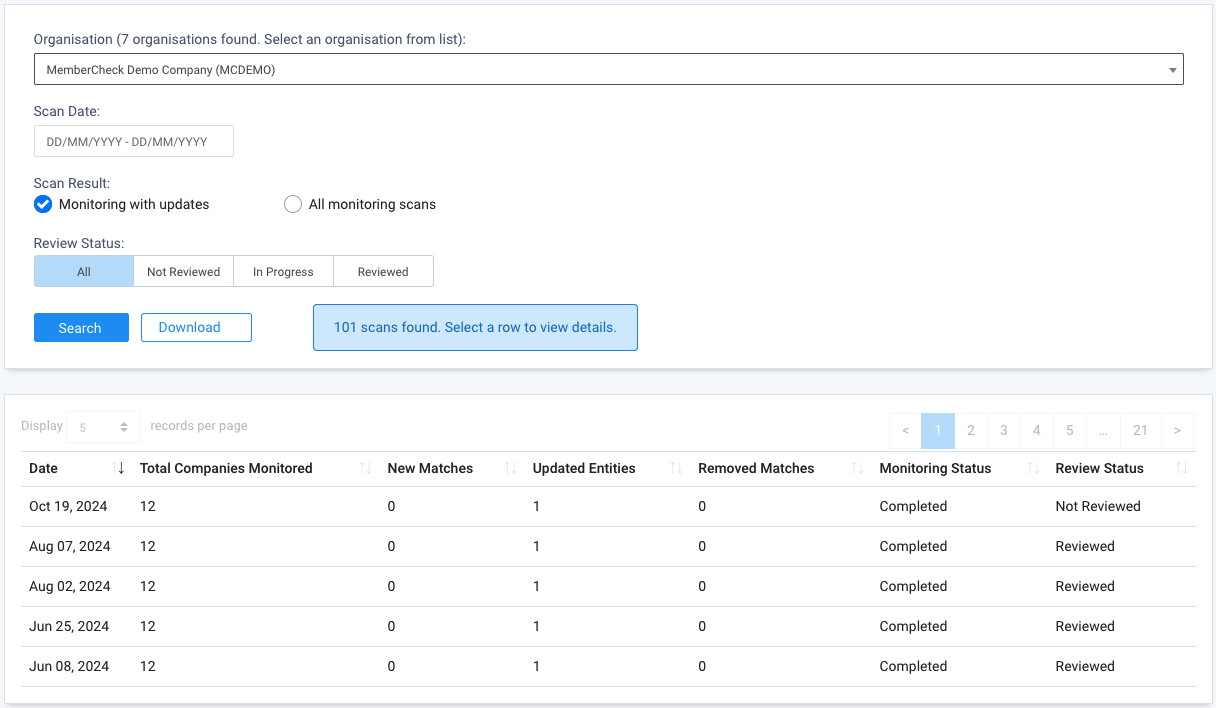
Review Status
The Compliance Officer can turn on ongoing monitoring results view to see the optional Review Status information via Administration > Organisation > Monitoring Settings.
| Column Name | Description |
|---|---|
| Date | Date the monitoring process was run. |
| Total Individuals/Companies Monitored | Total number of active monitored entities in the Monitoring List on the day of scan. |
| New Matches | Number of new results which match the monitored entity. |
| Updated Entities | Number of matched results with changes in the profile which still match the monitored entity. |
| Removed Matches | Number of results which no longer match the monitored entity. |
| Monitoring Status | Status of the monitoring process. Statuses can be:
|
| Review Status | Status of the ongoing monitoring review, which can be:
|
You may select a row for the day the monitoring scan was run to view detailed information of the results of the monitoring scan and the scan settings and policies applied.
Monitoring scan details
The detailed results list each monitored individual or company in the monitoring scan. The Added By and Scanned By columns show who is responsible for each entity, so that your team knows who to follow up with. A coloured dot before each row shows the type of change found: fiber_manual_record new, fiber_manual_record updated or fiber_manual_record removed matches.
Individuals:
| Column Name | Description |
|---|---|
| Reviewed | Shows whether the review of the changes for the individual is completed. The switch is on when a user has marked the review as completed. You cannot change the switch in this list. Shown when the Compliance Officer has turned on Review Status in Monitoring Settings. Not shown for a monitoring rescan. |
| Monitor | Toggle switch to turn monitoring of the individual on, or off to pause it. Shown when the individual has a Client ID and ongoing monitoring is active for your organisation. Users without permission to edit monitoring see the switch but cannot change it. If you turn monitoring on and the Monitoring List already has another entry with the same Client ID, the Client ID Already Exists message asks you to confirm. If you confirm, that entry takes the details of this scan. |
| Client ID | The unique identifier or profile name assigned to the individual during scanning. |
| Name (First Middle Last) | The name entered during screening, combining First, Middle and Last Name. |
| Original Script/Full Name | The non-Latin Original Script Name or Latin-based Full Name entered during screening. |
| DOB | Date of Birth or Year of Birth entered during screening. |
| ID Number | Identifier for the individual entered during screening. |
| Added By | The user who added the individual to the Monitoring List. If monitoring was paused and then turned on again, or the individual was scanned again with monitoring on, this shows the user who did it. Pausing monitoring does not change this value. |
| Scanned By | The user who last scanned the individual. Automatic monitoring scans do not change this value. |
| Category | Major categories of the matched profiles. These can be one or any combination of the following:
A blank Category indicates that no matches were found. |
| Matches | Number of matching profiles for the individual in this monitoring scan.
|
| Due Diligence | Number of due diligence decisions made against the matching profiles based on the decision types: stop Match stop Not Sure stop No Match stop Not Reviewed |
| Risk | Assessed risks assigned to matching profiles: fiber_manual_record High fiber_manual_record Medium fiber_manual_record Low |
Corporates:
| Column Name | Description |
|---|---|
| Reviewed | Shows whether the review of the changes for the company is completed. The switch is on when a user has marked the review as completed. You cannot change the switch in this list. Shown when the Compliance Officer has turned on Review Status in Monitoring Settings. Not shown for a monitoring rescan. |
| Monitor | Toggle switch to turn monitoring of the company on, or off to pause it. Shown when the company has a Client ID and ongoing monitoring is active for your organisation. Users without permission to edit monitoring see the switch but cannot change it. If you turn monitoring on and the Monitoring List already has another entry with the same Client ID, the Client ID Already Exists message asks you to confirm. If you confirm, that entry takes the details of this scan. |
| Client ID | The unique identifier or profile name assigned to the company during scanning. |
| Company Name | The company name entered during screening. |
| Registration Number | The company registration number entered during screening. |
| Added By | The user who added the company to the Monitoring List. If monitoring was paused and then turned on again, or the company was scanned again with monitoring on, this shows the user who did it. Pausing monitoring does not change this value. |
| Scanned By | The user who last scanned the company. Automatic monitoring scans do not change this value. |
| Category | Major categories of the matched profiles. These can be one or any combination of the following:
A blank Category indicates that no matches were found. |
| Matches | Number of matching profiles for the company in this monitoring scan.
|
| Due Diligence | Number of due diligence decisions made against the matching profiles based on the decision types: stop Match stop Not Sure stop No Match stop Not Reviewed |
| Risk | Assessed risks assigned to matching profiles: fiber_manual_record High fiber_manual_record Medium fiber_manual_record Low |
The columns show the values at the time of each monitoring scan.
Blank Added By or Scanned By values
The Added By and Scanned By columns were added in release 10.6.1. For monitored entities and monitoring scans from before this release, MemberCheck finds these users from the original single or batch scan that added the entity to the Monitoring List. A value is blank when MemberCheck cannot find this scan or its user. For example:
- The original scan was deleted in Data Management.
- The entity is no longer in the Monitoring List.
The User filter returns only the entities whose Added By or Scanned By user is the user that you select. An entity with blank values does not show when you filter by a user. To see all the entities of the monitoring scan, select All in the User filter.
To show only the entities of one user, select the user in the User filter. The filter returns the entities that the user added or last scanned. The downloaded report of the monitoring scan also includes the Added By and Scanned By columns.
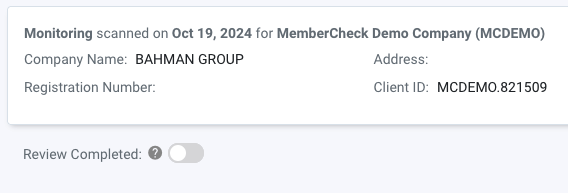
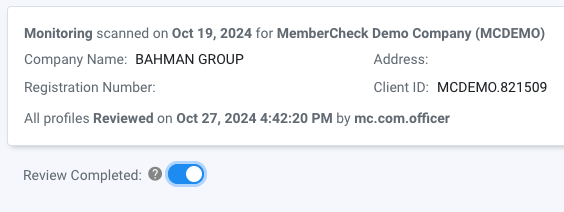
To track the progress of assessments of changed profiles, you can toggle the Review Completed switch to indicate you have completed the review of all profiles that have been changed in the monitoring check.
Toggle the Review Completed switch after you have reviewed all profile changes from the monitoring check to help track progress of review.
Monitoring Rescan
In addition to continuous monitoring of entities against the daily updated watchlist, an annual rescan is performed for all active monitored entities in the Monitoring List on the date of Subscription Renewal. This is an automated process to proactively ensure compliance with regulations, mitigate financial and reputational risk and reduce the likelihood of inadvertent engagement with sanctioned parties.
The rescan process checks against the entire watchlist database and may disregard any whitelisting and due diligence decisions depending on the whitelist policy in the organisation monitoring setting. This process reports on whether the entity has a Match or No Match, and does not report on changes to the profile e.g. new, updated or removed matches.
The outcome of the rescan can be viewed via the following screens:
- Scan Results - Select
Monitoring Rescansin the scan type filter
- Monitoring Results - this activity will be displayed in the list as "Rescanned".
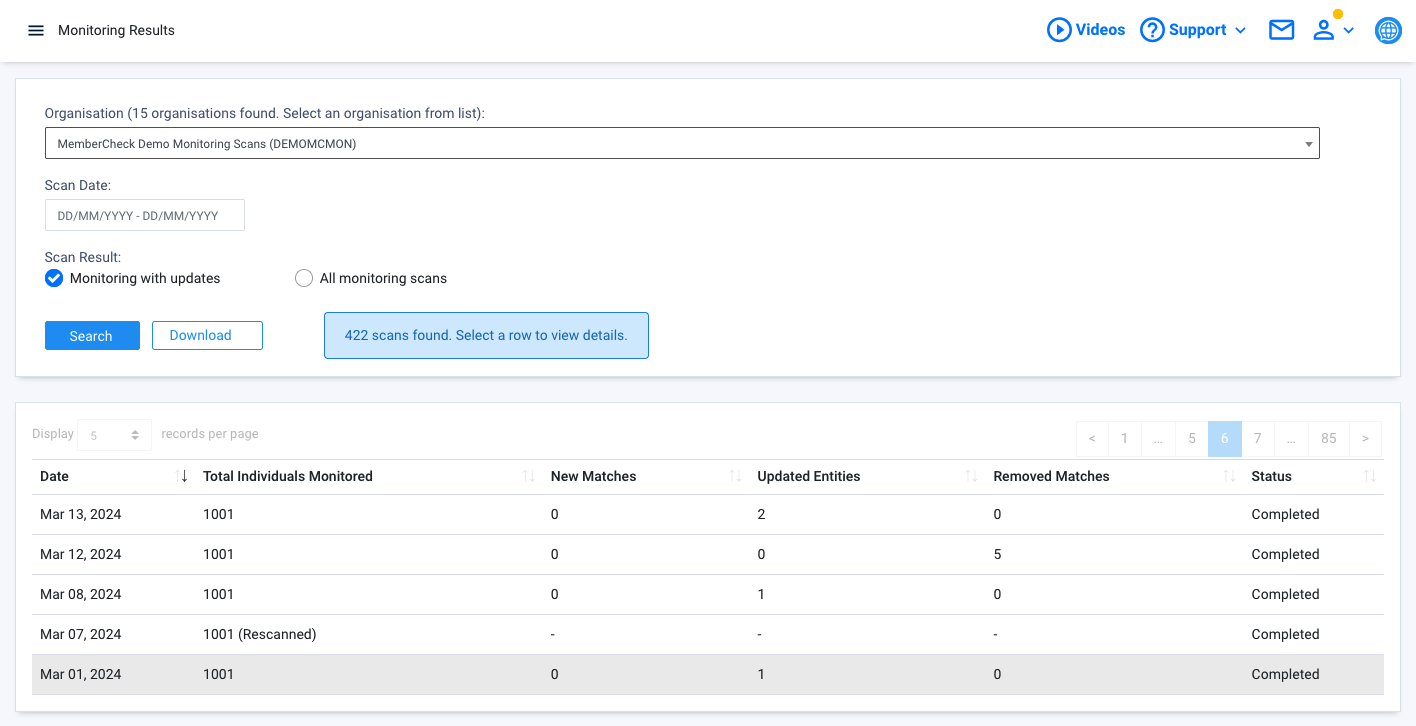 Click on the row to view detailed results of the rescan: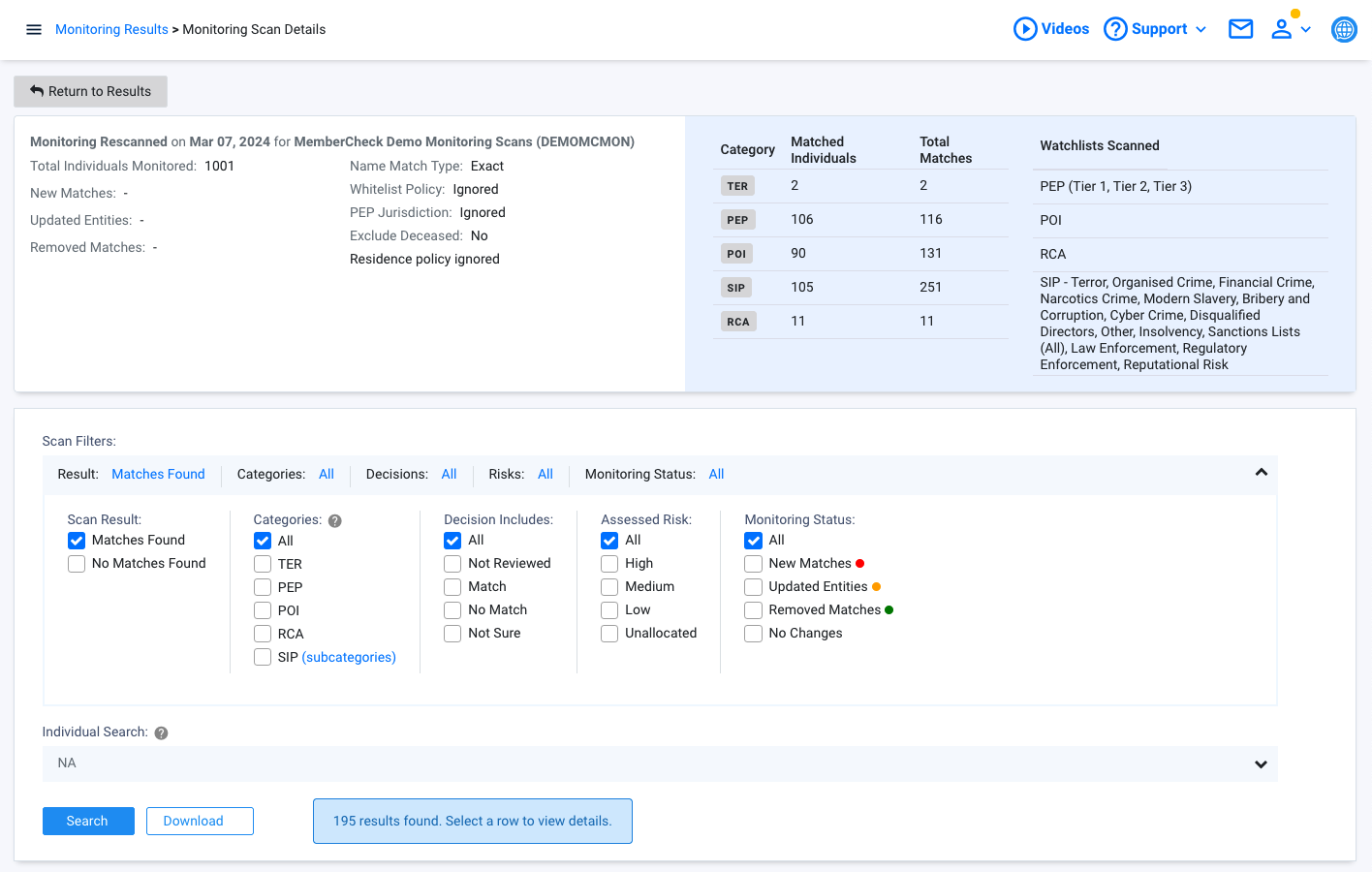
How-To Guides
View all monitored individuals
To view all monitored individuals, within Scan Results, you can simply select to filter Scan Type for Monitoring Scans.
View monitored individuals with specific outcomes
To view all monitored individuals with specific outcomes, you can select the relevant Monitoring Status by New Matches, Updated Entities, Removed Matches.
View specific monitored individual
To view all changes for a specific individual, you can specify the unique identifier for the individual in Client ID. You can enter a partial Client ID to return all monitored individuals whose Client ID contains the text you enter.
Compare updated profile information
Select an entry to view the matching profile. If the monitoring scan has flagged a matching profile as updated, these changes are highlighted and displayed on the left-hand side which contains the latest profile information.

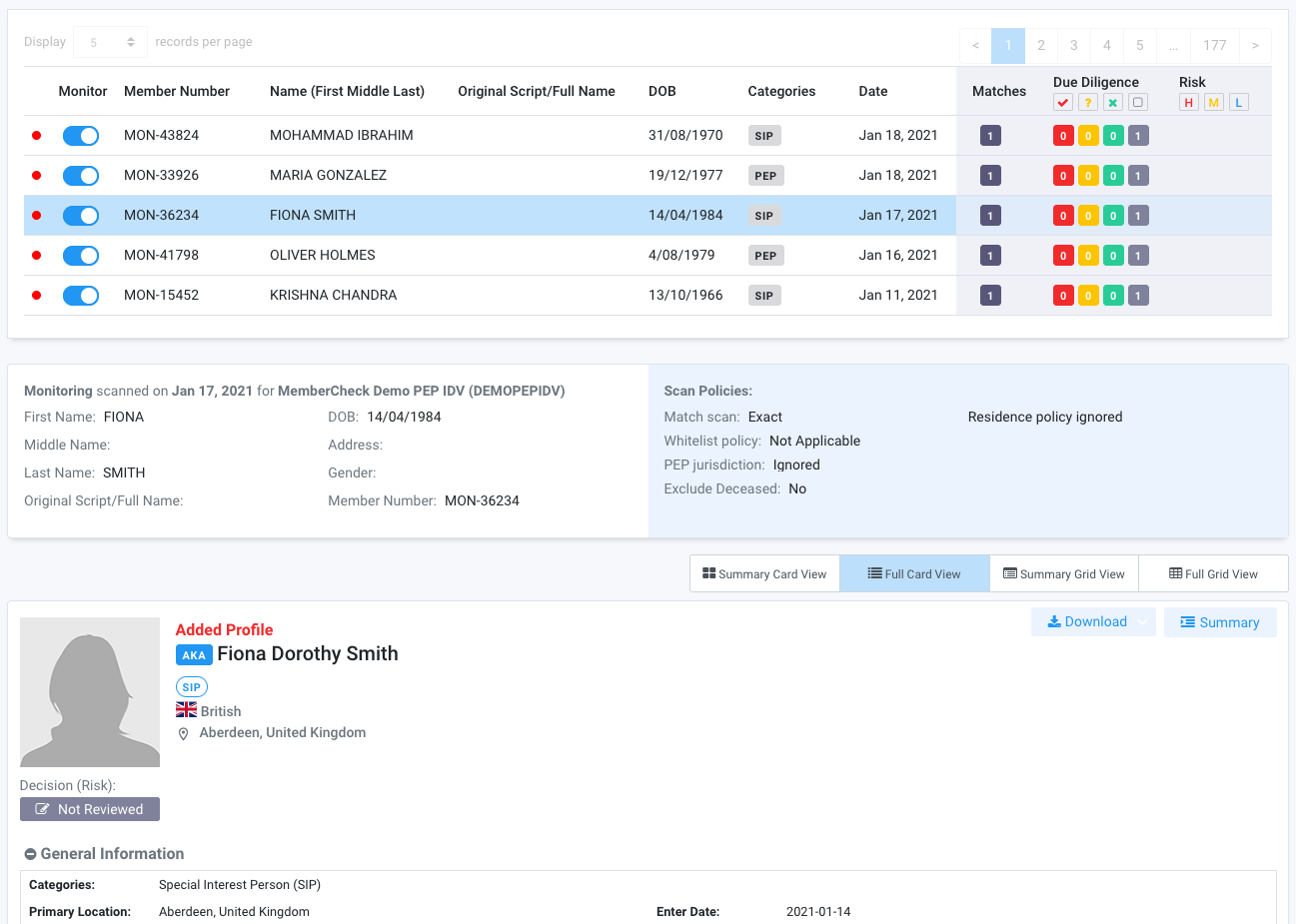
View New Matches
Example of a new profile being added to the watchlist that has triggered a new match:
View Updated Entities
Example of an existing match that has an updated profile in the latest watchlist. A side by side comparison of the new (left side) and previous (right side) profile is displayed for review and due diligence:
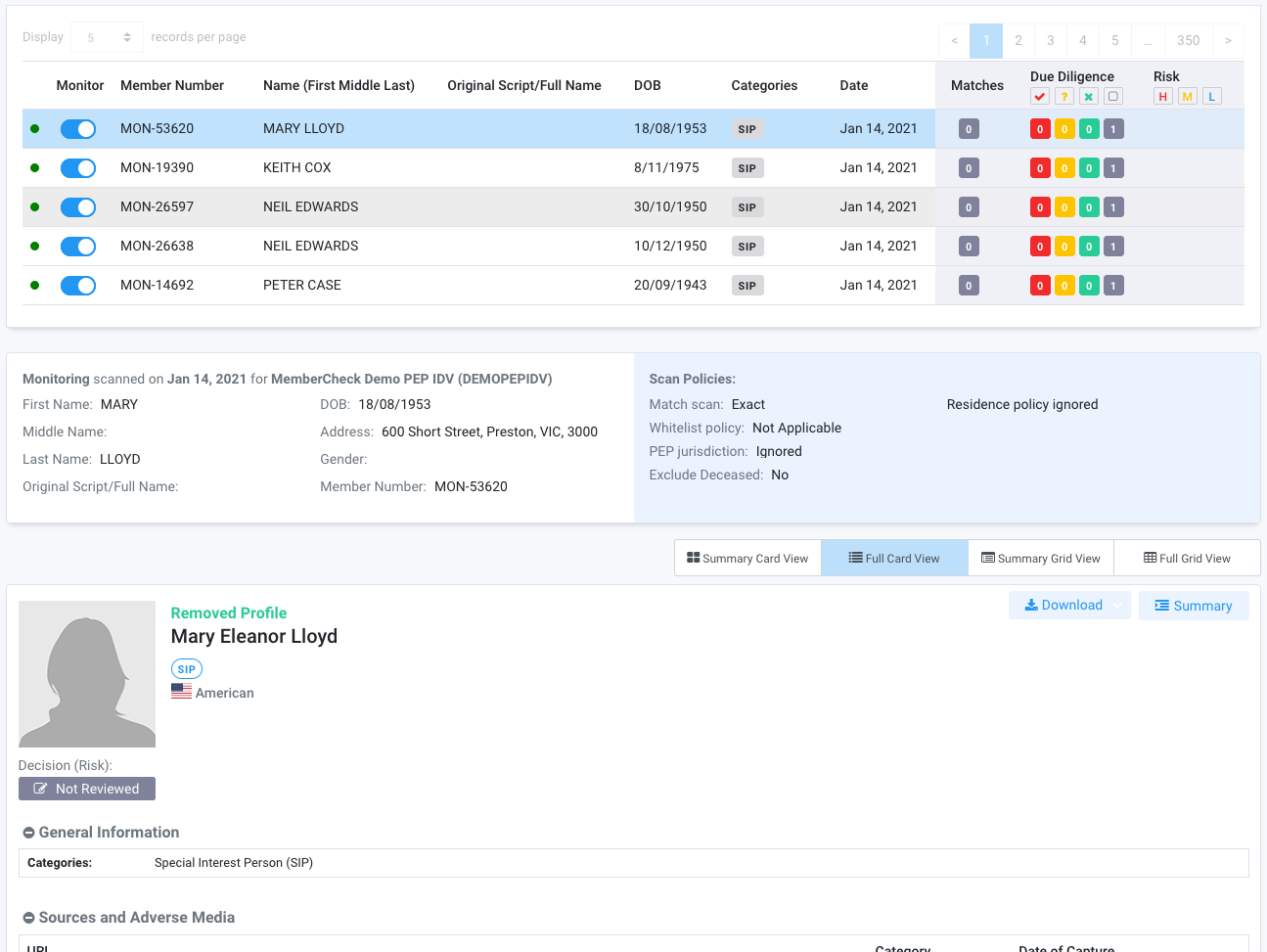
View Removed Matches
An example where a previously matched profile has been removed from the watchlists that has triggered a No Match result:
Enable and Disable Monitoring
Monitoring for individuals and companies can be enabled or disabled by toggling the switch button in the Monitor column.
Individuals and companies enabled for monitoring will appear in the Monitoring List.
If you enable monitoring for an individual or company with an existing entry in the Monitoring List (same Client ID) you will be prompted to confirm replacement of the existing entry in the Monitoring List.